Auto Purchase Invoicing (Automated Method)
Introduced in Season Version 26.1 is the automated creation of Supplier / Nominal Invoices. This further expands on the feature that was brought in on Version 25.1 that can be read on the following link
Auto Purchase Invoicing (Manual Method): Auto Purchase Invoicing (Automated Method)How it works
You will start by saving your PDF into a folder that is set up for you. Once the file is there we will pick up the invoice at each interval that we agree upon. There are 3 scenarios that you can experience when importing the order , the first being the suppliers product codes and descriptions are set up on season
Invoice we can match
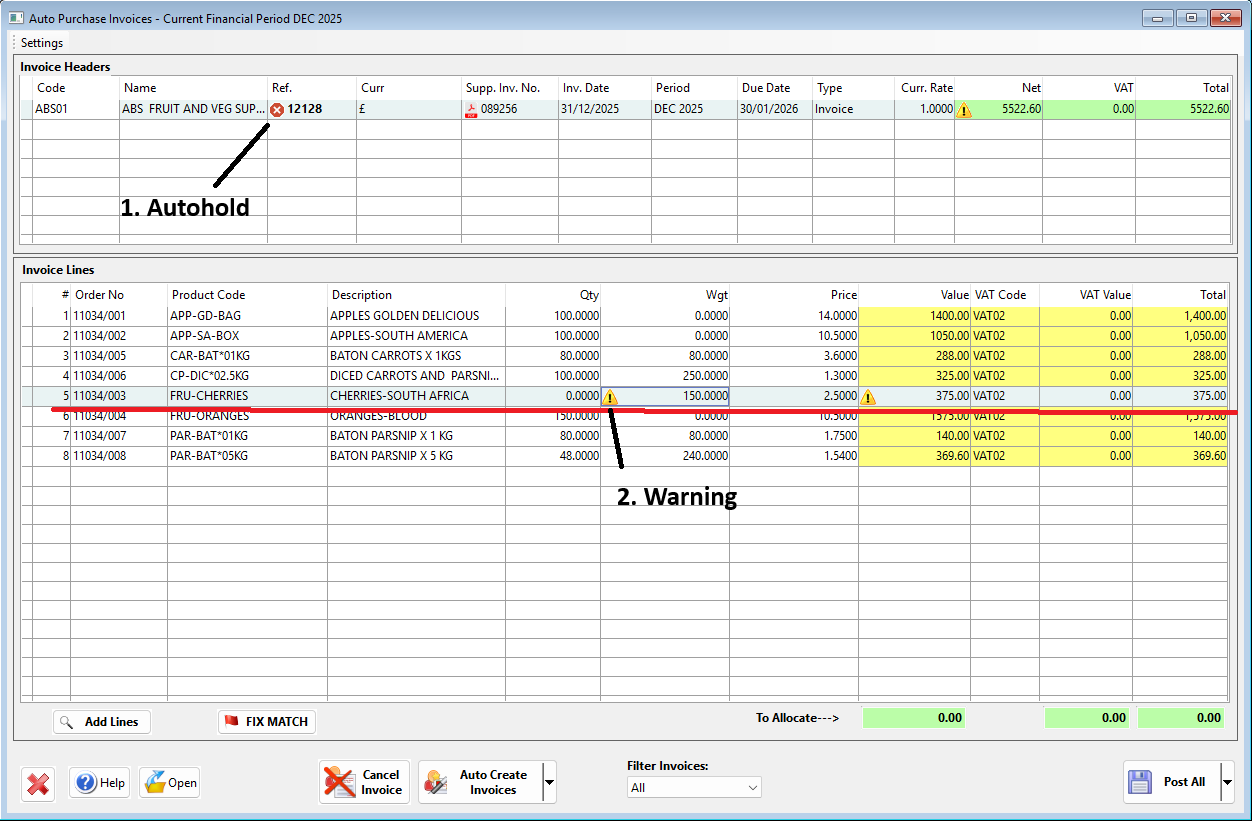
Your invoice will appear now in the auto purchase grid. Working with the above example an invoice has arrived from ABS Fruit, the system will pick up some key information and fill this in on season i.e. supplier invoice number, invoice date , net and total invoice value (There will be a set up guide below). With this invoice the system has flagged it to say there is a problem, what will happen in the case is we will put an auto hold on it which is highlighted above in Point 1. In Point 2. you will see a warning on the product line that is causing a problem and if you place your mouse on it, it will tell you that there is a difference with what is on the invoice compare to the original purchase order.
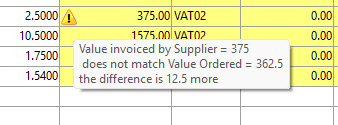
At this stage you have 2 options
- You can right click and approve the line difference to say you are happy with what is being invoiced. what this will do is take the invoice off on hold and it will allow you to then post the invoice
- You can change the line value to be what you were originally charged when placing the PO, from there you can then change the total invoice and continue to posting
Invoice we cant match
The second scenario is you import in an order, but the description on the invoice doesn’t match what is inside the purchase order. What we will do is import in the header of the invoice and we will import in the supplier descriptions
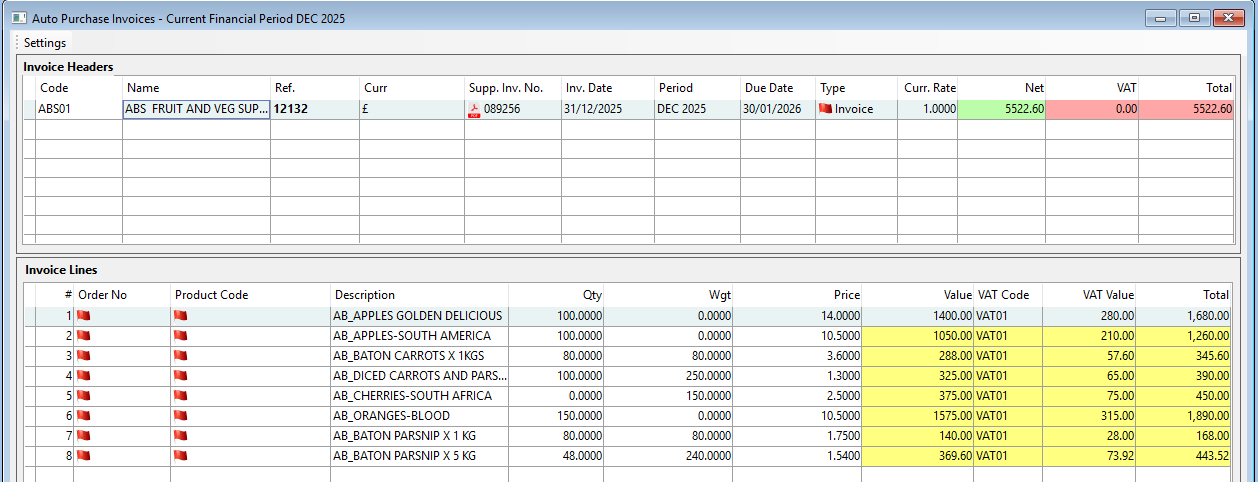
You will then need to work through each line and use the fix match option, this is you telling season what supplier description matches product with in season itself which i have highlighted below. Once your invoice is posted we will then save the suppliers description in season against the correct product and the next invoice that comes in we will be able to match up the invoice
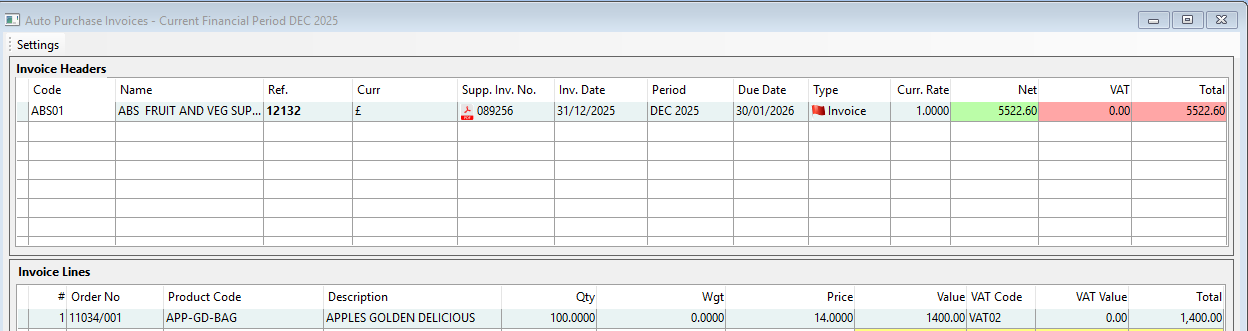
Import invoice regardless of match
The final scenario will be you have an invoice from a supplier that product lines do not match what is on your season PO, this might be because you have 2 products in season but the supplier has combined the products into 1 line. What we will do here is we will import the invoice header and ignore the product lines on the invoice and we will just use the order lines on Season. At this stage you will need to go through and change the prices manually depending on what needs changed.
Setup:
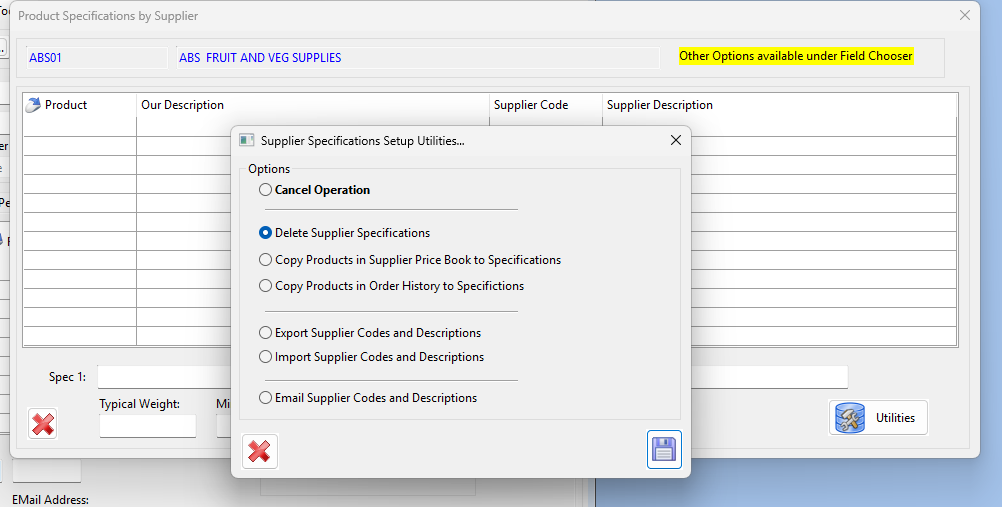
What you will want to set up in season is supplier specs , this will help us to match invoices to orders in season. Within the product spec box for suppliers we now have a utilities button, this will allow you to create a supplier spec based on either your price book or order history. This will fill in blank and you can then export out to excel to fill in yourself or you can email out to your supplier to fill in