Comms Manager – Phone System Integration
Season Office has a couple of different methods for integrating with a phone system. These methods offer different levels on integration.
SIP Protocol
The SIP Protocol allows Season Office to connect to the phone system as if it were a standard IP phone or softphone. An example phone system that allows SIP integration is a FreePBX or Asterisks phone system.
The phone system can be on premisis or hosted in the cloud.
This allows Season Office to make and receive calls, and see the status of other phone lines.
Season Office essentially acts as a softphone connected directly to the phone system.
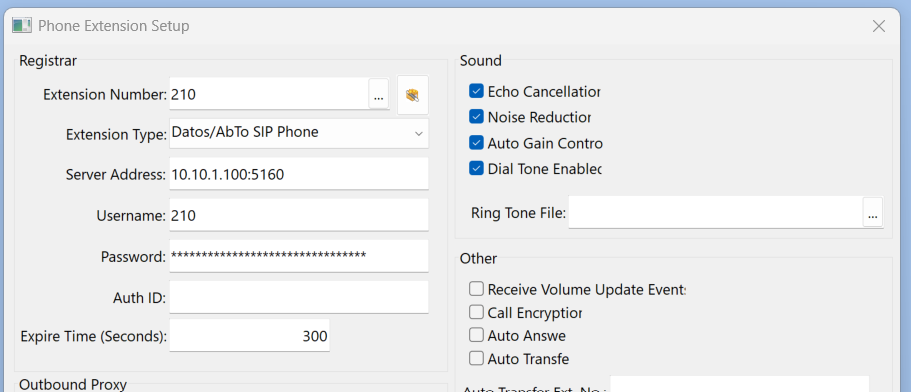
To use the SIP integration, an extension must be set up in the phone system. Then, in Season Office,
- Select ‘Datos/AbTo SIP Phone’ as the extension type
- Enter in the Server Address with the appropriate port number
- Enter in the Username and Password.
- Select other options as appropriate.
TAPI (Outgoing)
Season Office also allows for TAPI integration through Windows. The TAPI integration allows Season initialise an outgoing call, but it does not handle incoming calls.
To set up TAPI integration in Season Office, the Windows client needs to be configured to be able to make out going calls.
Then, in Season Office,
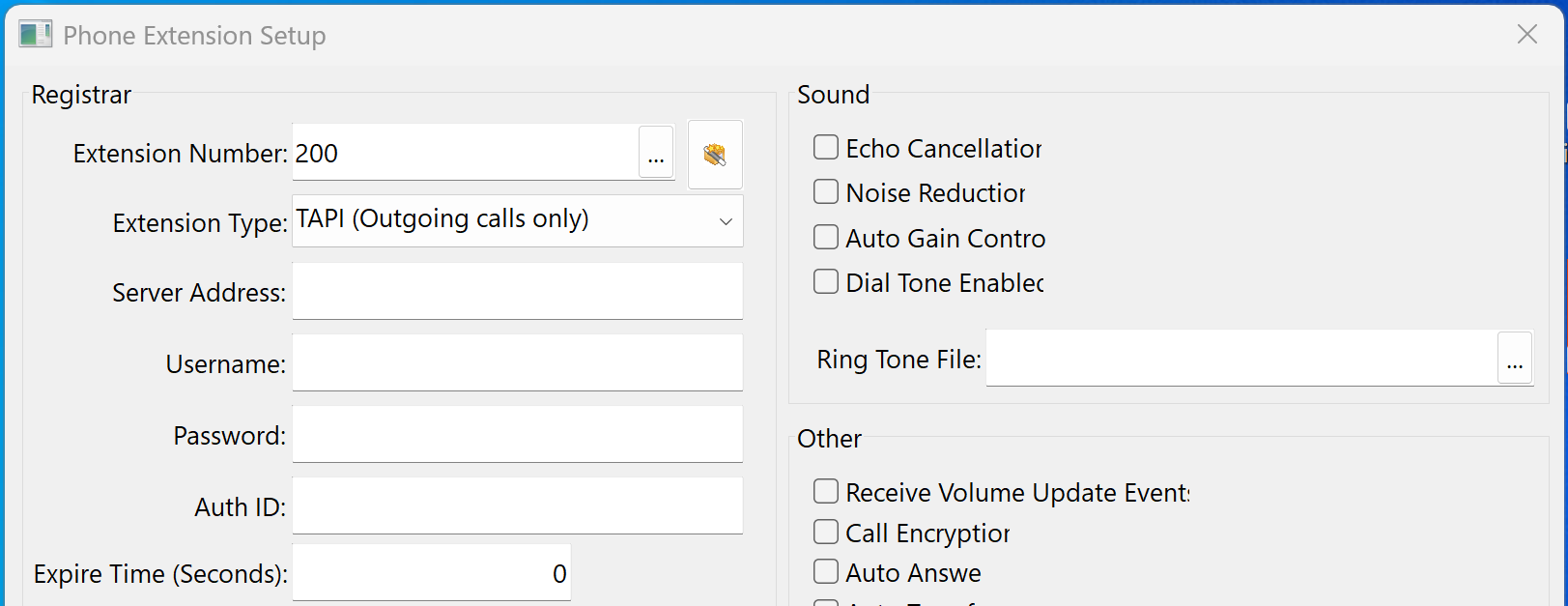
- Select ‘TAPI (Outgoing calls only)’ as the extension type
- The other settings are not used for this integration type
TEL Protocol (Outgoing)
Season Office also allows for TEL: integration through Windows. The TEL: integration allows Season initialise an outgoing call, but it does not handle incoming calls.
For the TEL: integration to work, a softphone must be installed on the client PC and Windows configured to launch that softphone application when a TEL: command is sent. This is done by setting the softphone application to be the default application for TEL in Windows Settings -> Default Apps.
Then, in Season Office,
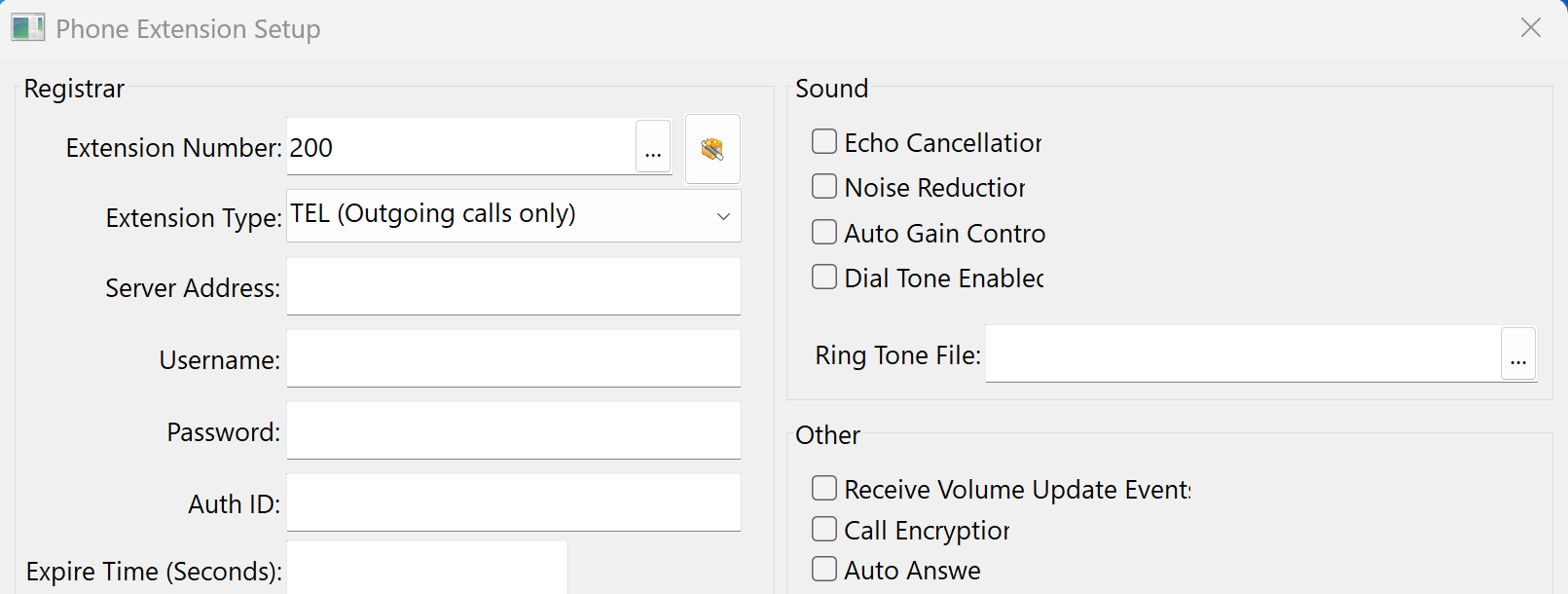
- Select ‘TEL (Outgoing calls only)’ as the extension type
- The other settings are not used for this integration type
HTTP Message Alerting (Season 2026.2 and above)
For the TAPI and TEL integrations, and starting in Season Office version 2026.2, Season Office also has the ability to receive HTTP messages about phone system status from a 3rd party phone system to alert incoming calls, call answering, and call termination.
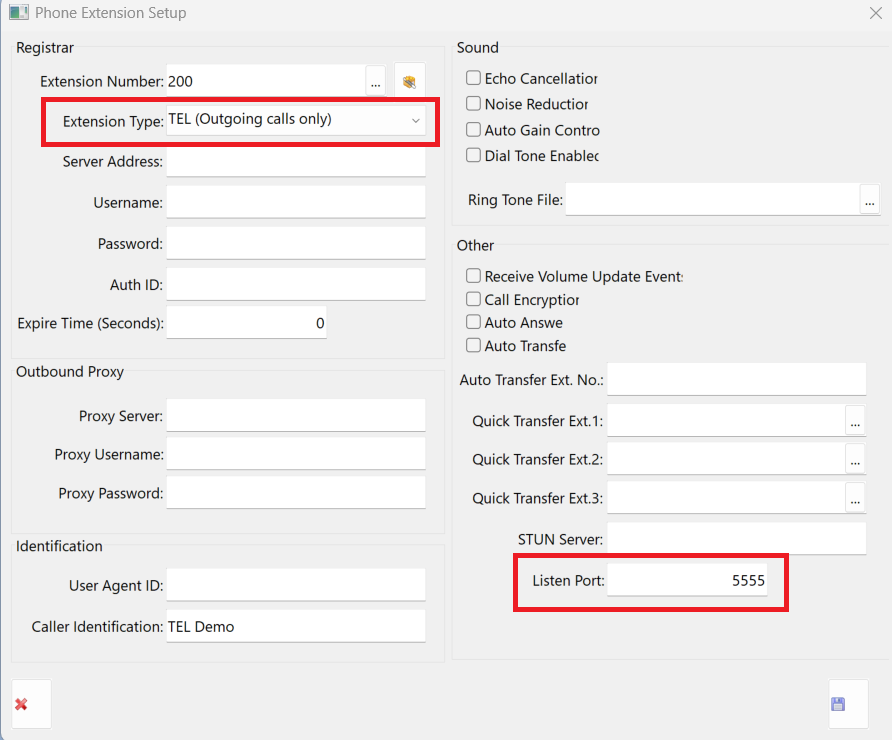
To get Season Office to listen for HTTP messages, the ‘Extension Type’ must be set to TAPI or TEL and then the ‘Listen Port’ must be set to a free port number that Season Office can listen on.
If the 3rd party is capable of sending event HTTP requests, it can send a request to Season Office when certain events (or actions) happen. The format of the HTTP request is
http://<clientpc>:<listenport>/telephony?<parameters>Where <clientpc> is the IP address or name of the client PC running Season Office, <listenport> is the port Season Office is configured to listen on, and <parameter> are a list of the parameters to pass to Season Office.
Valid parameters are:
| Parameter | Description |
| NO or N | The phone number e.g. NO=02838362002 or N=02838362002 |
| LINE or L | The line number e.g. LINE=1 or L=1 |
| CALLERID or I | The Caller ID e.g. CALLERID=”Datos Software Solutions” or I=”Datos Software Solutions” |
| ACTION or A | The current status of the line e.g. ACTION=INCOMING or A=INCOMING |
The available action types are:
| Action | Description |
| INCOMING or I | Alert Incoming Call |
| ESTABLISHED or E | Call Established |
| ONHOLD or H | Line on Hold |
| HOLDRESUME or R | Line Resumed |
| LINESELECT or L | Select Line |
| TERMINATED or T | Call Ended |
The parameter and action labels are not case sensitive.
So, for example to alert an tell Season Office to alert an incoming call, the 3rd party phone system could send the HTTP request
http://localhost:5555/telephony?line=1&no=012345678901&action=incoming&callerid=Datos

or (using the short codes)

http://localhost:5555/telephony?l=1&n=012345678901&a=i&i=Datos
This would flash the alert in Season Office to notify the users that there is an incoming call.
Once that call has been answered in the 3rd party phone system, it could send an HTTP request to Season Office to tell it that the call has been answered by setting the ‘action’ to ‘established’ e.g.
http://localhost:5555/telephony?line=1&no=012345678901&action=established&callerid=Datos

or (using the short codes)

http://localhost:5555/telephony?l=1&n=012345678901&a=e&i=Datos
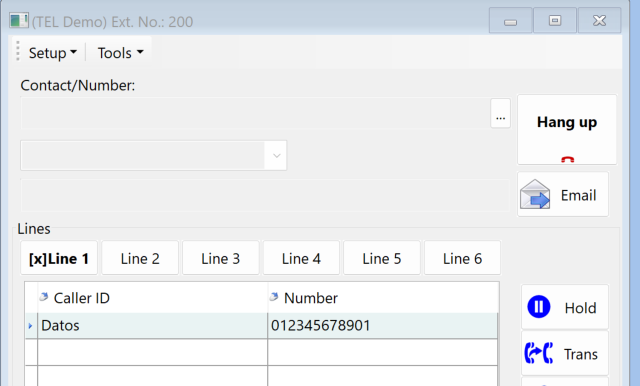
This would appear in the Season Office Comms Manager as an established call. From there a user can interact with the call as if it had been answered in Season Office.
TelephonyIntegration.exe
If the 3rd party system is not capable of sending an HTTP request, it may be capable of launching a program on the command line with the correct parameters.
To facilitate this, there is a companion program to Season Office that can be called to pass the events. This program is called TelephonyIntegration.exe and should be placed in the main season Programs folder.
The parameters and actions for this program are the same as for the HTTP request integration (in fact this program takes the incoming parameters and builds the HTTP request).
The first parameter on the command line is always the computer IP address or name and listen port number e.g. localhost:5555
Using the previous examples of alerting and establishing an incoming call, the command line call to alert an incoming call would be
>TelephonyIntegration.exe LOCALHOST:5555 line=1 no=012345678901 action=incoming callerid=Datos

or (using the short codes)

>TelephonyIntegration.exe LOCALHOST:5555  l=1 n=012345678901 a=i i=Datos
And the command line call when an incoming call is established would be
>TelephonyIntegration.exe LOCALHOST:5555 line=1 no=012345678901 action=established callerid=Datos

or (using the short codes)

>TelephonyIntegration.exe LOCALHOST:5555  l=1 n=012345678901 a=e i=Datos